
Halloween Makeup AI: Preview Your Party Look
Try half-face skeleton, vampire or playful clown makeup on a photo of yourself. Choose a look, upload one clear portrait and generate a still image. Each template asks the AI to keep your features, hair, clothes and setting; small changes can still happen. Sign in to generate. Each image costs 10 credits.

Original concept covers, not guaranteed outputs. Each template has its own photo requirements.
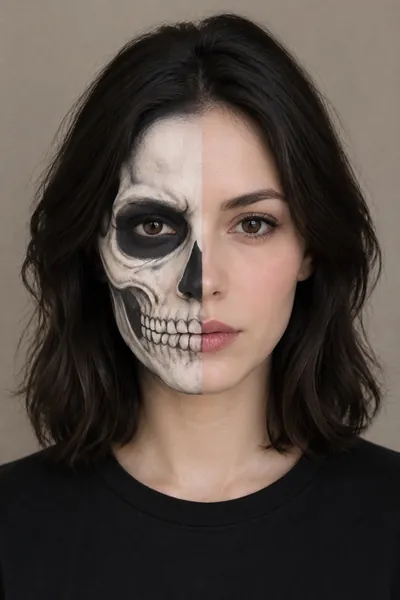
What does an AI Halloween makeup preview do?
An AI Halloween makeup preview applies a suggested face-paint or cosmetic design to an uploaded portrait. It helps you picture a party look on your own face before choosing colors, buying supplies or spending time at the mirror. This tool creates a still photo from one reference image; it does not track your face through a live camera.
The three looks here focus on makeup rather than a complete costume transformation. Their instructions ask for your original facial proportions, eye color, hair, clothing, lighting and background to remain consistent. Painted areas will deliberately look different, and generative editing can also change details outside those areas. Check the result before using it as your reference.
Use the preview to decide which design you like and which features you want to emphasize. Treat the image as visual inspiration. It cannot tell you whether a cosmetic is suitable for your skin or how a particular product will look in person.
Which makeup look should I choose?
Choose half-face skeleton makeup if you want a clear contrast between painted bone shapes and your natural face. The design puts ivory and charcoal paint on one side, with fine painted teeth following the cheek. The other side stays unpainted so you can judge how the design sits around your features.
Choose vampire makeup for a darker beauty look with burgundy eyeshadow, defined eyeliner and wine-colored lips. This template focuses on cosmetics. It does not ask for fangs, a cape, new eye color or a castle scene. It is a useful starting point when your clothes are already chosen and you only need a makeup direction.
Choose playful spooky clown makeup for a small red painted nose, delicate diamond accents around the eyes and red lips that follow your existing mouth shape. It avoids a stretched grin and a wig. Compare how much of your face each design covers rather than choosing only by the sample model.
| Look | Main detail | Paint coverage |
|---|---|---|
| Half-face skeleton | Ivory bone shapes and charcoal cheek lines | One side painted; the other side natural |
| Vampire makeup | Burgundy eyes and wine-red lips | Eyes and lips, with subtle contour |
| Playful spooky clown | Small red nose and diamond eye accents | Selected areas; original mouth shape |
How do I keep the result looking like me?
Start with a recent photo of one adult, facing the camera or turned slightly to one side. Keep both eyes, your mouth and the outline of your face visible. Even daylight helps separate makeup detail from shadows. Remove sunglasses and choose a photo without a heavy beauty filter or existing face paint.
Use a portrait with some room around the hair and chin. A very tight crop can hide the edges of the design, while a distant full-body shot gives the model less facial detail. If you want to compare several looks, reuse the same source photo and output ratio so differences are easier to judge.
The default output ratio is 4:5. Choosing a ratio that differs from your source may change the crop or composition. Identity preservation is an instruction, not a guarantee: check eye shape, lips, skin tone and hairline. If the result drifts, try a clearer source rather than assuming another generation will repair it.
Turn a preview into a usable party reference
When a result finishes, open it at a larger size before downloading. Look closely at symmetry, the edge of the paint, eyelashes and the area around the lips. Check that the design still makes sense where your face turns away from the camera. An attractive thumbnail can hide a blurred line or an invented detail.
Save the image as a reference for your own practice session or to discuss with a makeup artist. Pick a few elements you can realistically recreate: the skeleton cheek line, vampire eye colors or clown diamond placement. A generated finish may be smoother or more elaborate than everyday cosmetics allow.
For a Halloween profile picture or party invitation, check the final crop in the app where you plan to share it. Keep important paint details away from the edges of a circular avatar. If you need a costume change, a pet portrait or an animated scene, use the related tools instead; this page is specifically for a human makeup preview.
How to create your result
- 01
Choose a look and a clear portrait
Select one of the three makeup templates above. Sign in, then add one JPG, PNG or WebP photo, up to 10 MB and at least 256 pixels on each side. The minimum is a file requirement, not a quality recommendation: a sharp portrait with visible eyes and an unobstructed face gives you more useful detail. Upload only a photo you have permission to use.
- 02
Set the ratio and generate
Choose the output ratio before you generate. Read the selected template name and check the displayed credit cost. Each image generation costs 10 credits; generating another style or trying again uses a separate generation. Keep the task status visible while processing. If you run out of credits, the purchase flow can return you to this page with your template selection.
- 03
Review, compare and download
Once the task succeeds, inspect the result and use the download control to save it. Compare the design against your original photo before sharing or taking it to an appointment. You can switch templates to explore another direction. Save a result you want to keep before starting a new task, and remember that every new generation can vary.
Before you start: files, credits, and saved tasks
Privacy and image handlingUse one adult portrait in JPG, PNG or WebP format, up to 10 MB, with both dimensions at least 256 pixels. Sign in before uploading. Choosing a template or opening an illustration does not start a paid generation.
Each makeup image costs 10 credits. Submitted tasks appear in the workspace and My Creations. If your connection breaks, check the saved task before submitting again. Follow the displayed failure and refund status rather than assuming every delay means failure.
Your photo is uploaded for processing through the service and its AI provider. Use a photo you have permission to edit. Read the privacy policy for data-handling terms; this tool does not promise offline processing or exact likeness.
Questions before you generate
Is this a live Halloween makeup filter?
No. This is a photo-based AI makeup generator that returns a still image. Upload an existing portrait instead of opening a live camera. If you want a face-tracking AR effect while recording or streaming, you need a separate camera app. This page helps you plan a look or create a Halloween photo.
Will it change my face, clothes or background?
The templates explicitly ask the model to change facial makeup while preserving your identity, hair, clothing and setting. They do not lock those areas at the pixel level. Facial details, texture, lighting or framing may still drift. Check the image yourself; exact likeness and an untouched background are not guaranteed.
Is the Halloween makeup generator free?
Generating an image costs 10 credits and requires sign-in. You can browse the looks and photo advice before signing in. A different style or another attempt is a new generation with its own cost. Check your balance and the displayed task status before trying again after an interruption; do not assume an unfinished task has failed.
Can I use it on my phone, and where does my photo go?
Yes. Use the website in a mobile browser and choose a supported photo from your device. Generation requires an internet connection: your image is uploaded and processed through the service and its AI provider, rather than edited entirely on your phone. Read the privacy policy before uploading a sensitive image. This page does not provide a group-photo or pet makeup mode.
Find the right Halloween tool
Choose a task first, then a style. Every tool below uses the same account and credit balance.