
Ghostface AI trend: your Y2K horror phone photo
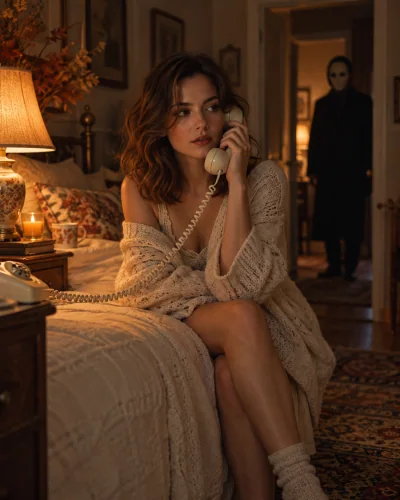
A warm bedside lamp, a corded phone, and a masked silhouette in the doorway. Make a Halloween portrait from your own photo with the Y2K horror phone template. Your face remains the identity reference; the room, lighting, clothes, and background are generated. The masked character is an original design, so an exact film-character replica is not promised.

Original concept covers, not guaranteed outputs. Each template has its own photo requirements.
What is the Ghostface AI photo trend?
The Ghostface AI trend recreates a particular horror-photo setup: you are the main subject in a nostalgic bedroom while a masked figure appears farther behind you. The contrast does the work. A calm pose and warm lamp make the foreground feel familiar; the doorway adds suspense. This is a staged AI scene rather than a photograph of an actual encounter.
Our Ghostface AI photo generator uses the horror phone template already available on the homepage. You do not need a bedroom set, another person, or a physical mask. Pick the template above and upload one portrait. The visual reference is an AI concept cover, not a measured example of what every uploaded face will produce. Check your own result before sharing it.
Choose a portrait that keeps you recognizable
A clear, evenly lit photo with one visible face gives the editor a better identity reference. Remove heavy beauty filters, avoid motion blur, and keep hair away from your eyes. A waist-up photograph gives the model more information about your posture than a very tight face crop. You can wear ordinary clothes; the template builds the scene around your reference.
People often ask why a Halloween edit looks like someone else. Identity can drift when a reference is small, shadowed, heavily filtered, or partly covered. Start with a different clear image before paying for another attempt. The recipe asks to preserve facial identity, age, and skin tone, but it cannot guarantee identical features or untouched clothing.
Build suspense without losing the subject
For a Y2K Ghostface photo, the useful details are the phone, a believable room, warm practical light, and distance between the subject and the background figure. A giant mask beside the face creates a different image. The template favors a distant silhouette so your portrait stays the focal point. You do not have to type those details into the generator.
Use a portrait crop for an avatar, or choose a taller image for a story. Leave breathing room above the head and around the telephone. When the result arrives, examine the hand holding the receiver, the cord, the eyes, and the doorway. Those checks matter more than adding extra grain or more dramatic shadows. Avoid cropping out the detail that makes the scene understandable.
Photos, prompts, and moving scenes
If you came for a Ghostface AI prompt, use the original horror-phone prompt in our Halloween prompt guide. It explains the same composition in editable language so you can adapt the idea in a tool that accepts written instructions. Our upload tool uses its own reviewed recipe; pasting a prompt into another service does not reproduce the same model or result.
A generated photograph and a background-figure reveal video are different tasks. This page creates a still image. You can later animate a completed scene through the video tool, but the basic subtle-motion option does not promise a masked person walking out of the doorway. Choose a costume-walk or outfit-transition page only when you want those specific actions.
How to create your result
- 01
Select the horror phone template
The correct style is preselected above, so you can review the composition before uploading. Sign in when you are ready to create, then add one photo of yourself. Use a reference you have permission to edit. A reference photo is required; this workflow does not create an identifiable portrait from a name or a description.
- 02
Check your frame and credit cost
Choose an image aspect ratio that suits your destination. The workspace shows the credit cost beside the generate button before you submit. Check that you selected the still-photo style, that your face is readable in the upload, and that you have enough credits. You can browse the concept illustration without submitting a paid generation.
- 03
Generate, inspect, and download
Start the task once and let its status update in the workspace. Inspect the resulting portrait, background figure, and hands before downloading. If the page loses connection, check My Creations before submitting again. You can return to the saved task instead of accidentally paying for a second version of the same request.
Before you start: files, credits, and saved tasks
Privacy and image handlingThe uploader accepts JPG, PNG, and WebP images up to 10 MB each, with a minimum of 256 pixels on both sides. Use a sharp original rather than a screenshot of a compressed social post. Sign in before uploading. The preview lets you confirm the selected reference; selecting a template or browsing its concept cover does not itself start a generation.
The workspace shows the cost before submission: image tasks use 10 credits and video tasks use 60 credits. Credits are purchased separately; a free completed result is not promised. Once a task is submitted, its processing and result states appear in the workspace and My Creations. Follow the shown failure or refund status. If a request is uncertain or the connection breaks, check the saved task before creating another one.
Uploaded references are processed through the configured AI and storage services. This is not an offline editor or a promise that photos stay only in your browser. Use images you are allowed to edit and read the privacy policy for the data-handling terms. Generated imagery can contain mistakes; inspect identity, anatomy, and scene details before you download or publish a result.
Questions before you generate
Is this an official Scream or Ghostface product?
No. AI Halloween is an independent tool. The template creates an original masked silhouette in a horror-phone scene inspired by the wider photo trend. It does not guarantee an exact licensed mask, a film still, a celebrity likeness, or a scene from a particular movie. Use the preview as composition guidance rather than a promise of an exact character.
Can I make a couple version here?
This page is set up for one reference person. Uploading a group photo does not turn the recipe into a two-person template, and two separate uploads are not accepted for this style. For a duo look, use a homepage template explicitly marked for two people. Each person needs a separate, clear reference so identities can be assigned consistently.
Do I need Gemini or a long prompt?
You do not need a Gemini account to use this generator, and there is no prompt field to fill in. Select the template and upload the reference photo. The separate prompt guide offers original text you can copy into a compatible image tool, with its own account rules and output behavior. This site does not connect to your Gemini account.
Will the picture keep my exact clothes and hairstyle?
The recipe prioritizes a recognizable person while rebuilding a retro scene, so clothing, accessories, hair placement, and lighting may change. It is not a pixel-preserving photo editor. If a particular garment or exact hairstyle is essential, judge the generated image carefully and do not assume another render will fix only that one detail.
Find the right Halloween tool
Choose a task first, then a style. Every tool below uses the same account and credit balance.